TreeRU - Terminal File Explorer with Clipboard Screenshot Saving
Claude Code, Codex, Gemini CLI — more people than ever are coding alongside AI in the terminal. But there is a persistent friction point: browsing file structures is cumbersome in the terminal, and passing screenshots to an AI means opening an IDE, dragging an image, and manually copying paths. We built TreeRU to solve exactly these problems.
30s
Install time
~15MB
Disk usage
MIT
Open-source license
$0
Cost
Why We Built It
We work in the terminal every day — Claude Code as the primary tool, server management over SSH. But the same pain points kept coming up.
1. File structure visibility is poor. Constantly typing ls and tree, or opening a separate file manager window.
2. Sharing screenshots with AI is painful. Capture an error screen and show it to AI? Open an IDE, drag the image, copy the path… too many steps.
3. Copying file paths is tedious. Telling AI “edit this file” means typing out the full path every time.
4. Browsing remote server files is inconvenient. After SSH-ing in, checking files means opening another terminal or launching a separate SFTP client.
We wanted to solve all of these in a single tool. The concept: split your Windows Terminal with Ctrl+Shift+D, run AI CLI on one side and TreeRU on the other. That is how TreeRU was born.
What TreeRU Does
TreeRU is a terminal-based file explorer. It uses a Far Manager-style multi-column layout to display folders and files at a glance. The column count auto-adjusts (2–4 columns) based on terminal width.
┌─────────────────────┬──────────────────────────────────┐
│                     │ > ..         │ > Downloads       │
│  Your Terminal      │ > src        │ > Documents       │
│  (claude, codex,    │ > docs       │   index.js        │
│   git, ssh...)      │ > .config    │   package.json    │
│                     │ > node_mod…  │   README.md       │
│                     ├──────────────┤                   │
│  100% native        │              │                   │
└─────────────────────┴──────────────┴───────────────────┘
 C:\Users\me\project>█
Navigate with arrow keys, Enter to open folders, Backspace to go up. Left/right arrows move between columns. The bottom status bar shows the current path, and selecting a file displays its full name, size, and modification date.
Auto Screenshot Saving — The Core Feature
This is the main reason TreeRU exists. When you take a screenshot, it is automatically saved to the folder you are currently browsing. No extra steps. Capture, and the file appears in 1–2 seconds.
The mechanism is simple: TreeRU watches the clipboard for incoming images and saves them. This means it works with any screenshot tool.
Windows 11 PrtSc
Keyboard Print Screen button
Snipaste
Region capture to clipboard
Win+Shift+S
Windows built-in Snip & Sketch
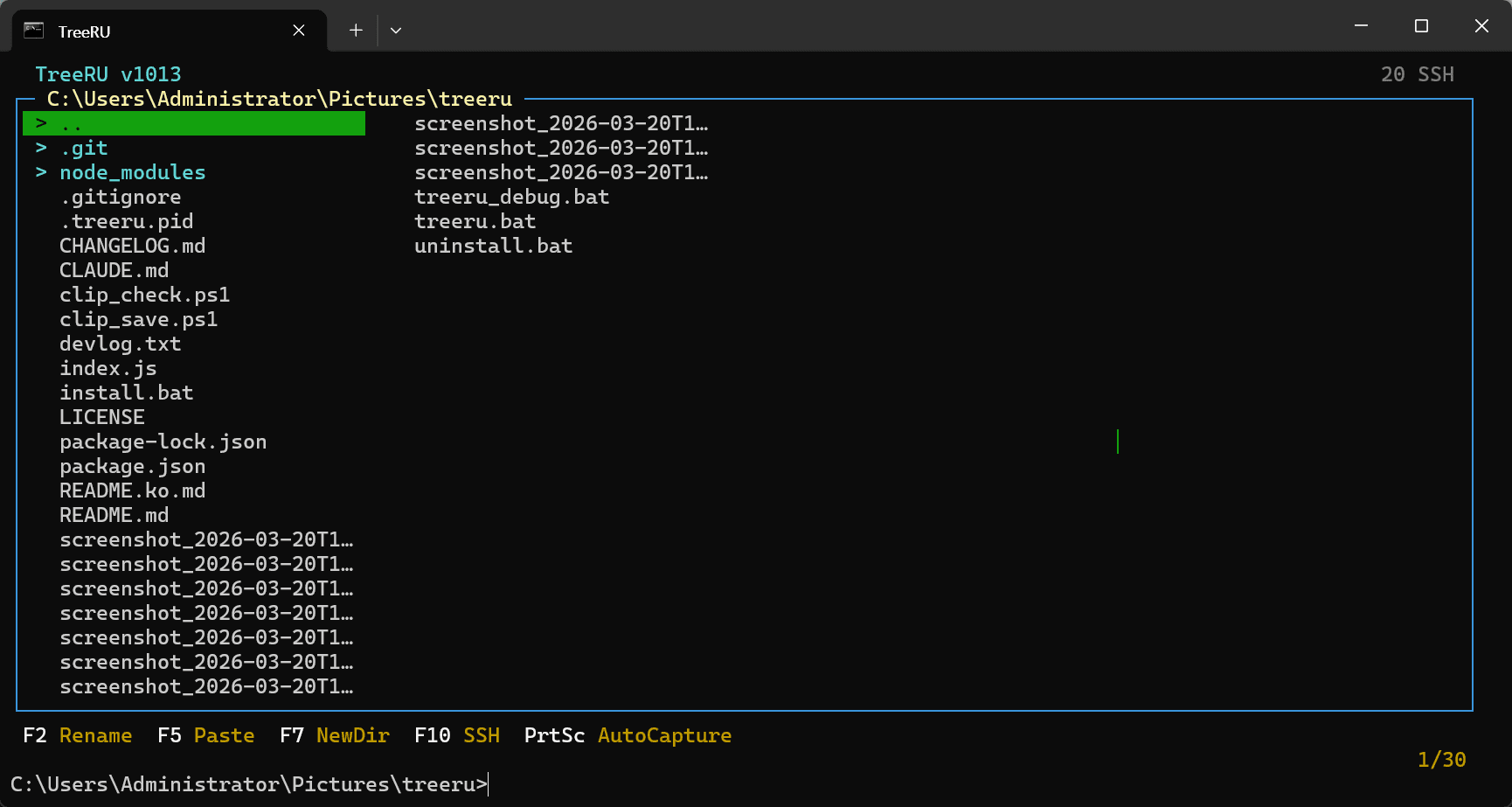
Screenshots are saved in screenshot_datetime format in the current folder. Just capture and it is done.
Here is a real workflow example: You are editing code in Claude Code and hit a browser error. Press PrtSc. One second later, screenshot_2026-03-20T15-30-00.png appears in your TreeRU folder. Press Alt+Shift+C to copy the path and paste it to the AI. No IDE needed. No image dragging.
File Copy & Paste
Copy files with Ctrl+C in Windows Explorer, then press F5 in TreeRU to paste them into the current folder. Multi-file copy is supported. If you are connected to a remote server over SSH, files copied locally are uploaded to the remote folder via SFTP — no separate FTP client needed.
SSH Remote Browsing
Press F10 and TreeRU displays the server list from your ~/.ssh/config. Select one and it connects via SFTP, letting you browse remote files exactly like local ones.
All features work identically on remote servers:
- Folder browsing, file creation/deletion/rename
- Screenshot auto-save → SFTP upload
- Local file paste → transfer to remote folder
- File path copy (in remote path format)
Only SSH key authentication is supported. Password authentication is not available for security reasons. If you already manage servers with key-based auth, TreeRU works out of the box with no additional configuration.
Install & Uninstall
TreeRU is open-source (MIT license) and runs on Node.js.
git clone https://github.com/treeru/treeru.git
cd treeru
npm install
node index.js
Windows users can download from the Releases page and run install.bat as administrator. After that, just type treeru in any terminal to launch.
Uninstalling is equally simple — just delete the folder. TreeRU does not touch the registry, runs no background services, uses memory only while active, and disappears completely when closed. Resource usage is minimal: a single Node.js process.
Keyboard Shortcuts
| Key | Action |
|---|---|
| ↑ ↓ | Navigate files |
| ← → | Move between columns |
| Enter | Open folder |
| Backspace | Go to parent folder |
| F2 | Rename |
| F5 | Paste files |
| F7 | Create new folder |
| F10 | SSH connect / disconnect |
| Del | Delete |
| Alt+Shift+C | Copy file path |
| PrtSc | Auto-save screenshot (external tool) |
Wrap-Up
TreeRU is not a grand tool. It is a file explorer you keep open beside your terminal. But it solves the specific, repetitive pain points of CLI workflows — auto screenshot saving, file pasting, and SSH remote browsing.
If you use AI CLI tools like Claude Code or Codex, you know how frustrating it is to share images with AI. Open an IDE, drag an image, or type out the full path. With TreeRU, one capture and one path copy is all it takes.
It is open-source, installs in 30 seconds, and uninstalling is just deleting the folder. Give it a try — if it does not fit your workflow, remove it instantly.
Related Posts
© 2026 TreeRU. All rights reserved.
All content is copyrighted by TreeRU. Unauthorized reproduction without attribution is prohibited.