Diagnosing Office Network Speed with iperf3 - 1G vs 2.5G Real Measurements
"The network feels slow" tells you nothing about the cause. iperf3 measures actual bandwidth between servers, giving you real numbers instead of guesses. We compared 1Gbps and 2.5Gbps NIC performance in our office server infrastructure, and share the results along with a step-by-step bottleneck diagnosis method.
Why iperf3?
Internet speed test sites (like Speedtest) measure bandwidth to your ISP. To measure LAN speed, you need to send traffic directly between internal servers. iperf3 is the standard tool for measuring pure network bandwidth in a server-client model.
- Pure bandwidth measurement: No disk I/O or application overhead — just network throughput.
- Bidirectional testing: Use
-Rfor reverse or--bidirfor simultaneous bidirectional tests. - Segment-by-segment diagnosis: Narrow down whether the bottleneck is the NIC, cable, or switch port.
Test Environment and Method
| Item | Server A (Sender) | Server B (Receiver) |
|---|---|---|
| NIC (1G test) | Intel I225-V 2.5GbE (1GbE mode) | Intel I225-V 2.5GbE (1GbE mode) |
| NIC (2.5G test) | Realtek RTL8125BG 2.5GbE | Realtek RTL8125BG 2.5GbE |
| Switch | Managed switch (2.5GbE capable) | |
| Cable | Cat5e (existing) / Cat6 (replaced) | |
| OS | Ubuntu 24.04 LTS | |
iperf3 Basic Usage
# Install (Ubuntu/Debian)
sudo apt install iperf3

# Server mode (run on receiver)
iperf3 -s

# Client mode (run on sender)
iperf3 -c 10.x.x.x                # Default 10-second test
iperf3 -c 10.x.x.x -t 30          # 30-second test
iperf3 -c 10.x.x.x -R             # Reverse (server→client) test
iperf3 -c 10.x.x.x --bidir        # Simultaneous bidirectional test
iperf3 -c 10.x.x.x -P 4           # 4 parallel streams
iperf3 -c 10.x.x.x -t 30 -i 5    # 30 seconds, report every 5s
1Gbps NIC Measured Results
Theoretical maximum for 1Gbps is 1,000Mbps, but protocol overhead and environment factors limit real-world throughput to around 940Mbps.
| Test | Direction | Cable | Speed | Notes |
|---|---|---|---|---|
| 1 | A → B | Cat6 | 937 Mbps | Near theoretical limit |
| 2 | B → A | Cat6 | 932 Mbps | Good |
| 3 | A → B | Cat5e (3m) | 925 Mbps | Minimal difference at 1G |
| 4 | Bidirectional | Cat6 | ~470 Mbps each | Full-duplex confirmed |
| 5 | A → B | Cat5e (20m, old) | 610 Mbps | Degraded cable performance |
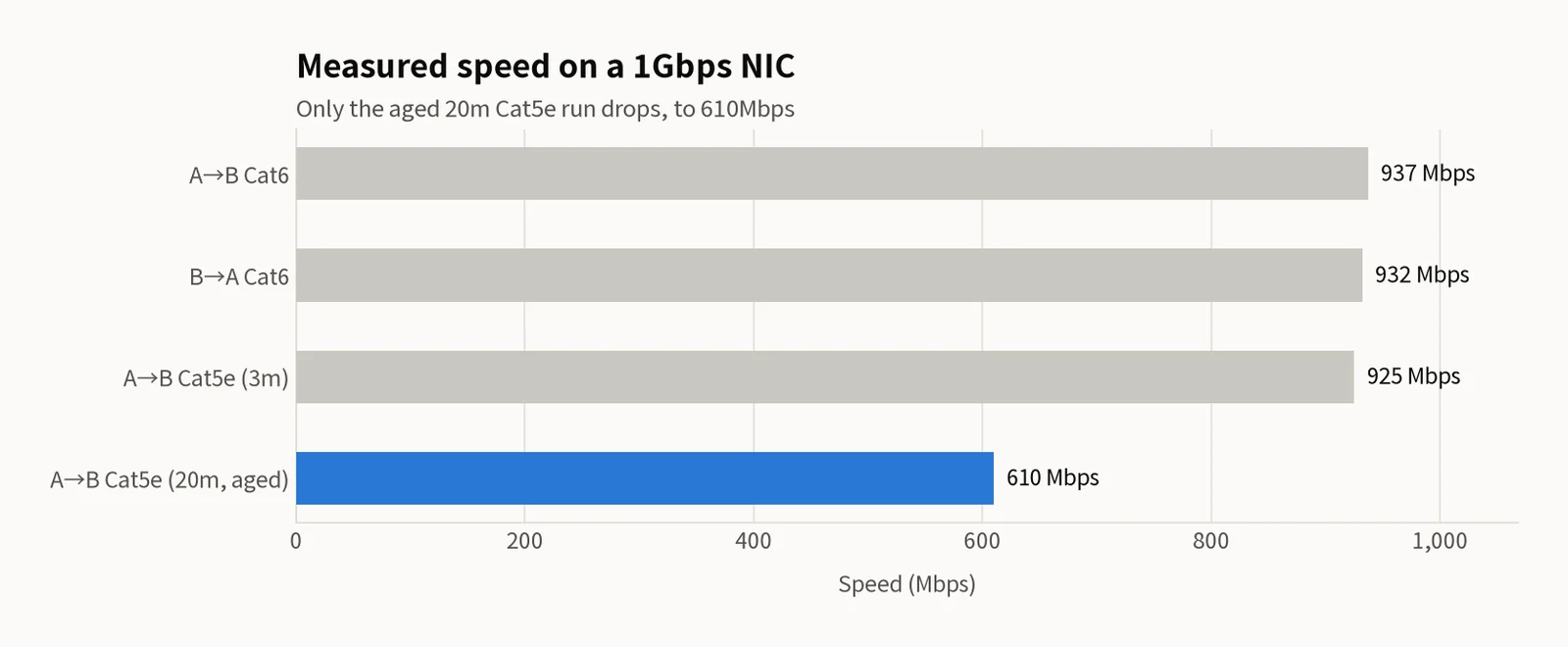
Key finding: With Cat6 cables and short distances, 1GbE reaches 937Mbps — near the theoretical ceiling. At 1Gbps, the difference between Cat5e and Cat6 is minimal. However, aging 20m Cat5e cables can drop to 610Mbps. If you see large variance, suspect the cable first.
2.5Gbps NIC Measured Results
After upgrading to 2.5GbE NICs, cable quality becomes critical. The difference between Cat5e and Cat6 is dramatic.
| Test | Direction | Cable | Speed | Notes |
|---|---|---|---|---|
| 1 | A → B | Cat6 | 2.33 Gbps | Near theoretical limit |
| 2 | B → A | Cat6 | 2.31 Gbps | Good |
| 3 | A → B | Cat5e (3m) | 2.17 Gbps | Short Cat5e still works |
| 4 | A → B | Cat5e (20m, old) | 1.41 Gbps | Cat5e bottleneck is clear |
| 5 | Bidirectional | Cat6 | ~1.16 Gbps each | Full-duplex confirmed |
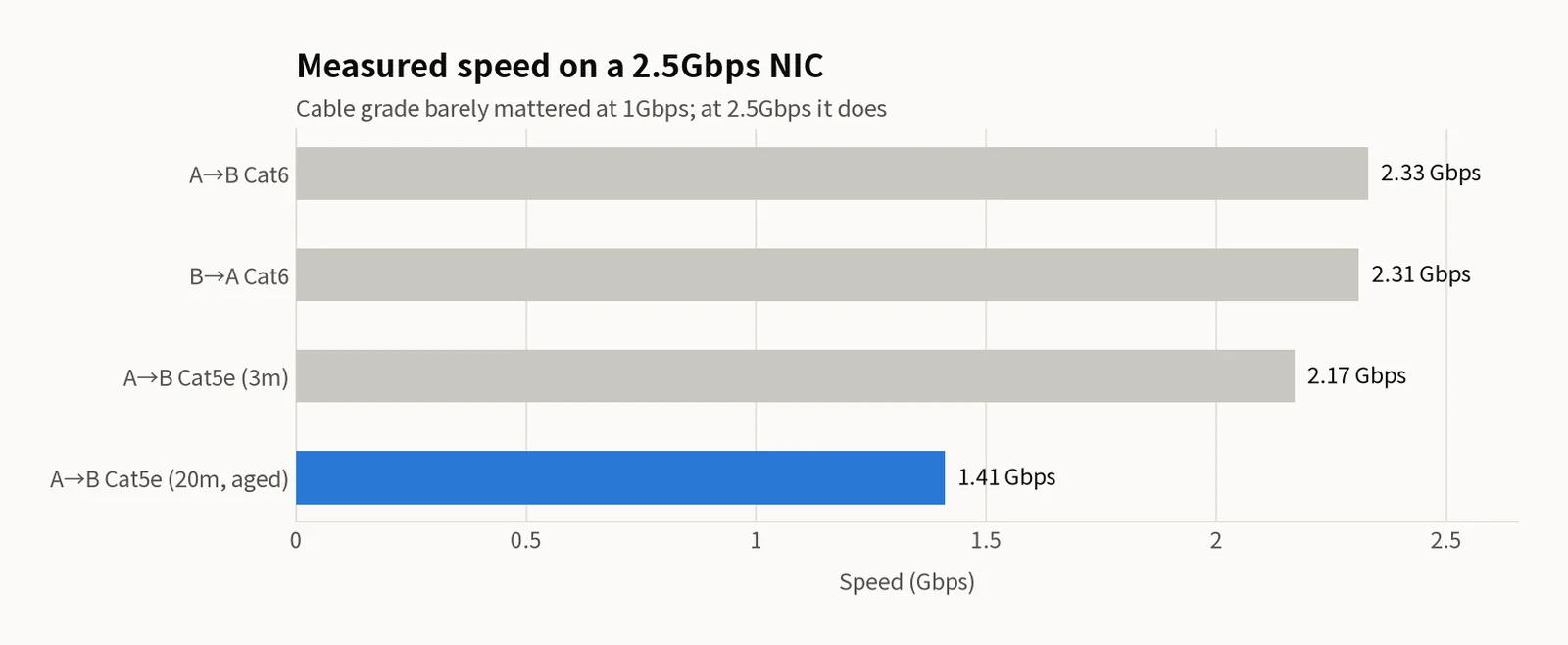
Cat5e is officially rated for 1Gbps only. Short runs can reach 2.17Gbps, but aging 20m cables drop to 1.41Gbps — negating the 2.5GbE upgrade. If you run 2.5GbE, Cat6 cables are mandatory.
Bottleneck Diagnosis Method
When speed falls below expectations, narrow down the problem through NIC, cable, and switch testing in order.
Step 1: Check NIC Link Speed
# Check NIC link speed
ethtool eth0 | grep Speed
# Expected: Speed: 2500Mb/s  ← Normal
# Problem:  Speed: 100Mb/s   ← Auto-negotiation failed!

# Check NIC driver
ethtool -i eth0 | grep driver
Step 2: Cable Bypass Test
# Connect directly with a short new cable (bypass switch)
# Server A ← Cat6 1m → Server B

iperf3 -c 10.x.x.x -t 30
# If speed is normal → existing cable or switch is the cause
# If speed is still low → NIC or driver issue
Step 3: Check Switch Port
# Check port link speed in switch web interface
# If a 2.5G switch port shows 1G:
# 1. Try replacing the cable
# 2. Connect to a different port
# 3. Reset NIC auto-negotiation

sudo ethtool -s eth0 speed 2500 duplex full autoneg on
Symptom Diagnosis Table
| Symptom | Likely Cause | Diagnosis Method |
|---|---|---|
| Only 100Mbps | NIC auto-negotiation failure | Check link speed with ethtool |
| High variance (600-900Mbps) | Loose or aging cable | Replace cable and re-test |
| Slow in one direction only | Half-duplex mode | Check duplex mode with ethtool |
| Intermittent near-zero speed | Packet drops, switch buffer overflow | Check switch logs, netstat -s |
Troubleshooting Case: The Slow Server
A real case from our infrastructure: one server had unusually slow file transfer speeds. Here is the diagnosis process.
Symptom: File transfer speed of only 10MB/s on a 1GbE server.
Step 1 (iperf3 measurement): Only 93Mbps. A 1GbE NIC should deliver ~940Mbps.
Step 2 (ethtool check): Speed: 100Mb/s. The NIC had auto-negotiated down to 100Mbps.
Step 3 (Root cause): Some pins in the Ethernet cable had poor contact. 1Gbps uses all 8 pins, but 100Mbps only needs 4. With faulty pins, the NIC automatically downgraded to 100Mbps.
Fix: Replaced the cable with a new Cat6 cable. Speed recovered to 937Mbps — file transfer speed jumped to ~110MB/s.
Lesson: Most network issues originate at the physical layer (cables, connectors, NICs). Checking link speed with ethtool should always be your first step.
Summary Checklist
- Use
iperf3 -cfor basic bandwidth,-Rfor reverse,--bidirfor bidirectional - 1Gbps NIC: ~937Mbps on Cat6 is normal. Below 800Mbps needs investigation
- 2.5Gbps NIC: Cat6 is mandatory. Cat5e varies 1.4-2.2Gbps depending on distance
- Check NIC link speed with ethtool first — 100Mbps means cable fault
- For high variance: replace cable first, then try different switch ports
- Use bidirectional tests to verify full-duplex vs half-duplex mode
- Measure regularly to maintain a baseline for comparison
Network problems demand numbers, not guesses. iperf3 gives you exact server-to-server bandwidth measurements, and combined with ethtool, you can quickly narrow down the bottleneck to the physical layer, switch, or NIC.
Related Posts
© 2026 TreeRU. All rights reserved.
All content is copyrighted by TreeRU. Unauthorized reproduction without attribution is prohibited.